
ShortsBro User Guide
General build. Focused on floating media controls and Shorts auto-next.
Icons in this document are rendered with Material Symbols matching the app's Compose Material icons (Icons.*).
Start
When you launch the app, the default start page is m.youtube.com.
Basic Browsing
Type a URL in the address field to navigate.
In the current build, the address-bar overflow menu (⋮) is removed. Open Settings from the floating controls (below).
YouTube Controls (Watch/Shorts)
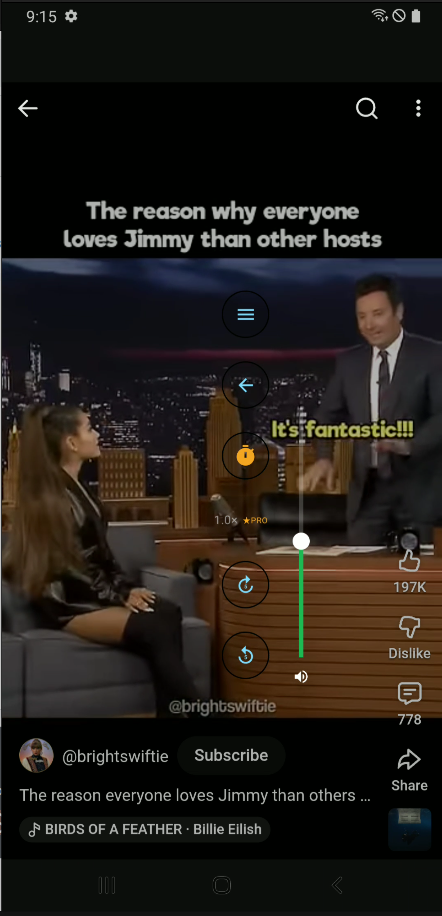
Floating controls appear only on YouTube Watch or Shorts pages.
Media controls are shown as a floating button cluster near the bottom of the screen. Long-press and drag the cluster to reposition it.
Tap the hamburger button (menu) to open Settings. Layout (1/2 columns) and the volume slider are configured in Media Controls.
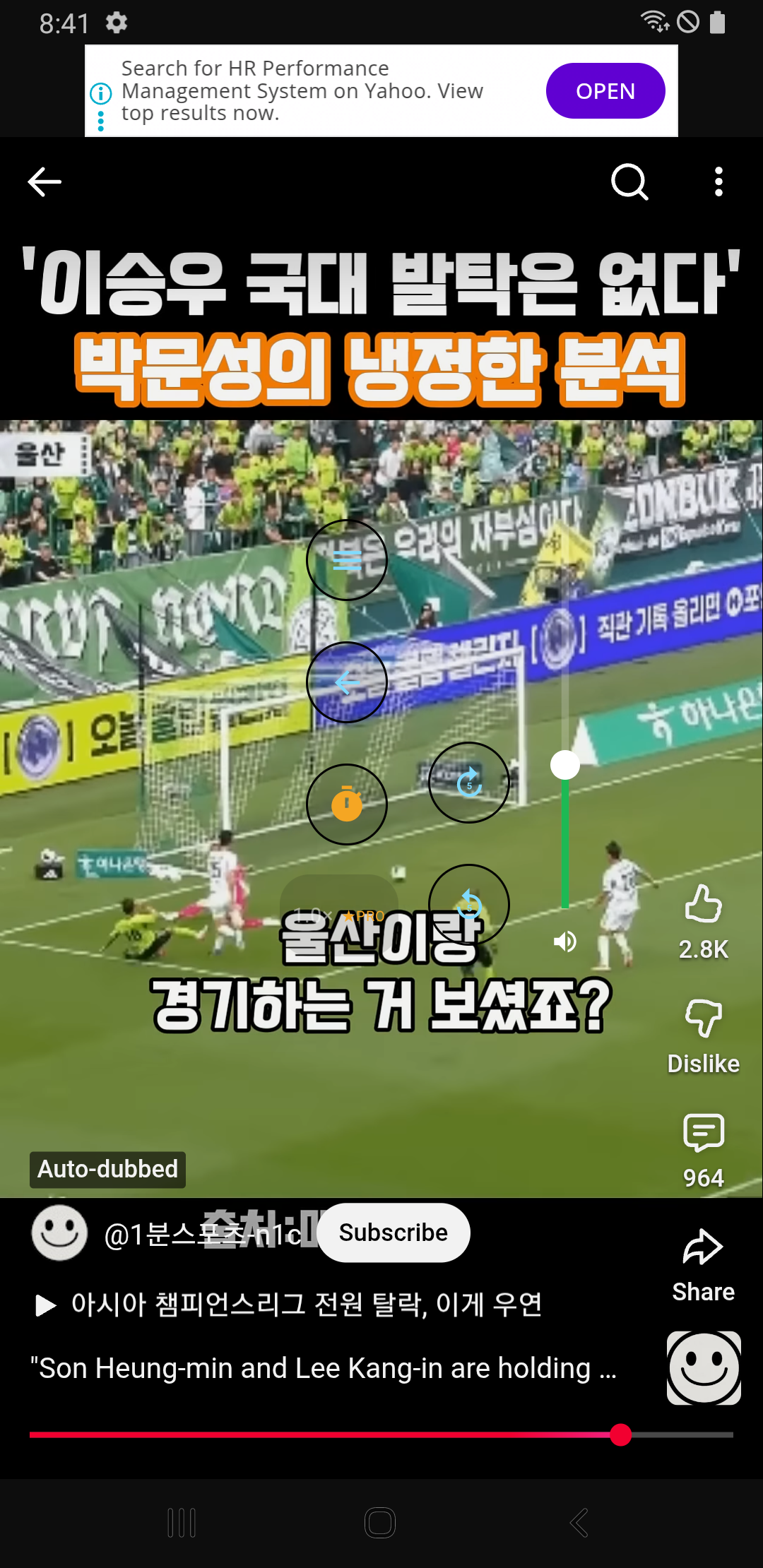
Short press replay_5/forward_5 to jump 5 seconds. Long press to select a 10-second jump.
In the PRO build, tapping the speed button opens a sheet where you can select both playback speed and video quality on the same screen. Available quality options depend on the YouTube player (e.g., Auto, 720p, 1080p). In the general build, speed/quality UI may be limited.
Shorts Auto-Next
When Auto Next for Shorts is enabled, ShortsBro automatically advances to the next Short after the current one ends.
1) Detects Shorts completion
2) Attempts to move to the next Short
3) Uses fallback logic if looping/replay is detected
Configure the delay in Settings: 0s, 0.5s, or 1.0s.
Auto-next depends on YouTube DOM/player structure and may break when YouTube updates.
Settings
On a YouTube playback screen, tap the hamburger button (menu) in the floating control box to open Settings.
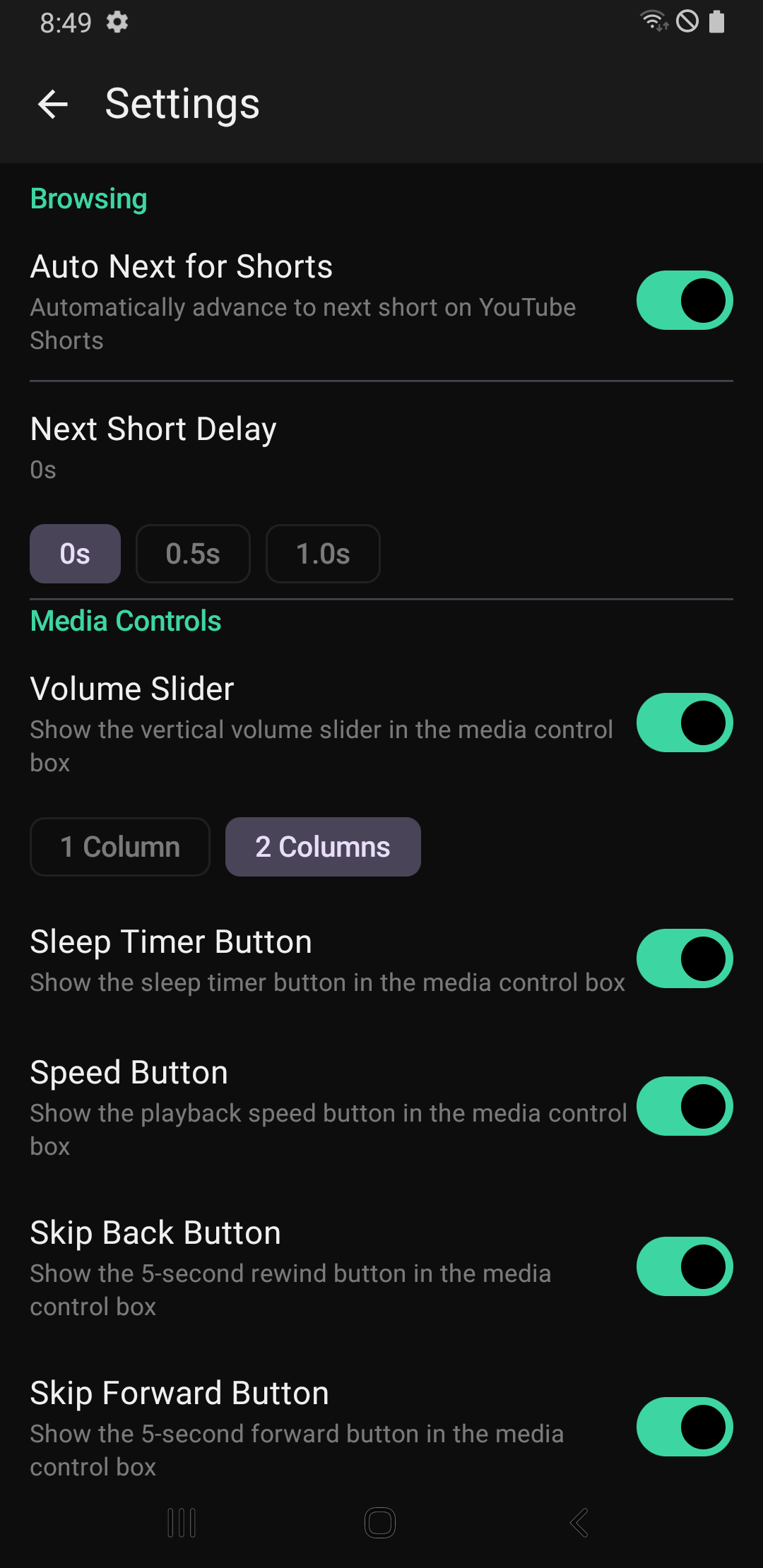
Auto Next for Shorts
Next Short Delay
Background Playback is not available in the general build.
Volume Slider: show/hide the vertical volume slider next to the floating controls.
1 Column / 2 Columns: choose one or two columns for the floating buttons.
Toggle buttons individually: Sleep Timer Button, Speed Button, Skip Back Button,
Skip Forward Button, Back Button.
Note: the timer icon represents Sleep Timer (PRO feature), not playback speed.
Adjust the opacity of the background scrim behind the floating control box. Higher values improve visibility; lower values reduce screen obstruction.
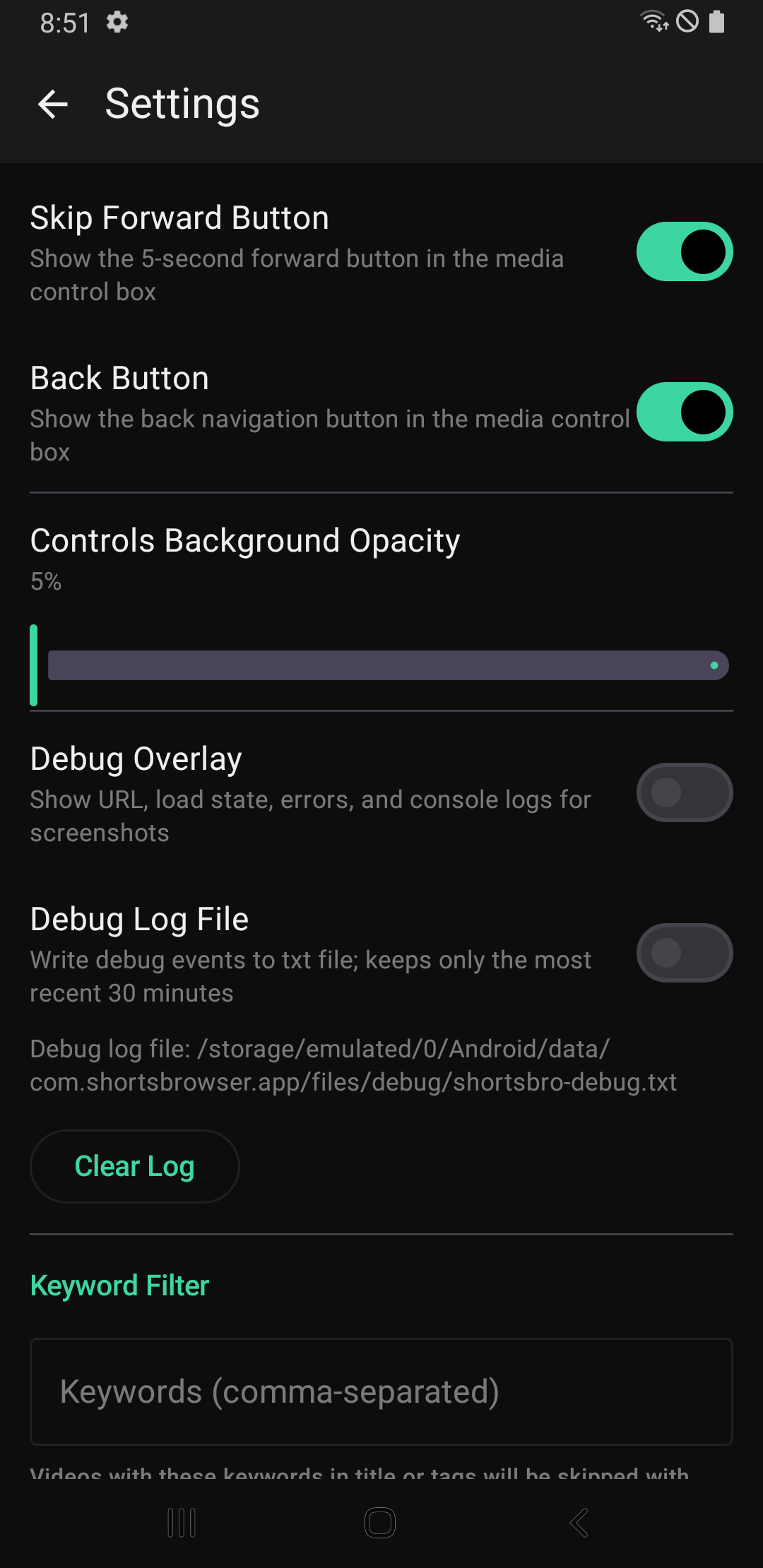
PRO unlocks features such as Sleep Timer and the speed/quality selection sheet. Labels and available toggles may differ by edition.
Debug
Useful when reporting issues or collecting evidence for reproducible bugs.
Shows URL, load state, errors, and console logs on-screen for screenshots.
Writes debug events to a text file and keeps only the most recent ~30 minutes. Use Clear Log to reset.